

Adding Platforms
How to add your Streaming Platform of choice to CLMS.
Once you are signed up and logged in to the Casterlabs-Multistream Dashboad you will see a Server URL and Stream Key - these will be added into your broadcasting software of choice, first let's add some platforms to sream to!
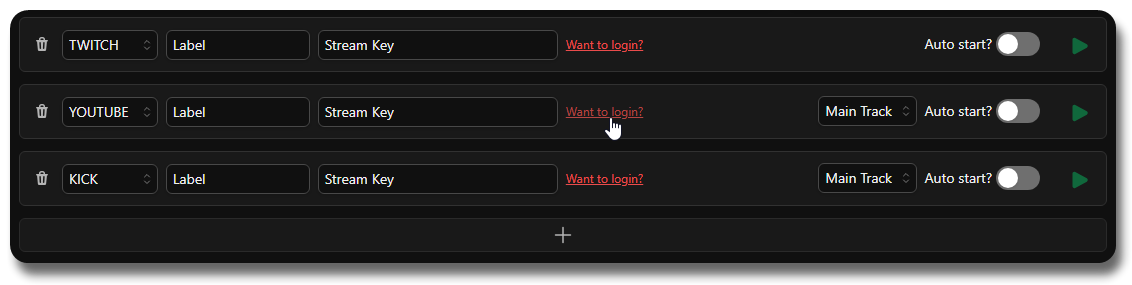
From here you can either paste in your Stream Key manually, or you can click the Want to Login? button to log in to your Casterlabs account and have the Stream Key auto-filled for you.
Pick Your Platform #
Check the guides below for help finding your streamkeys if you don't want to log in with Casterlabs and want to add platforms manually.
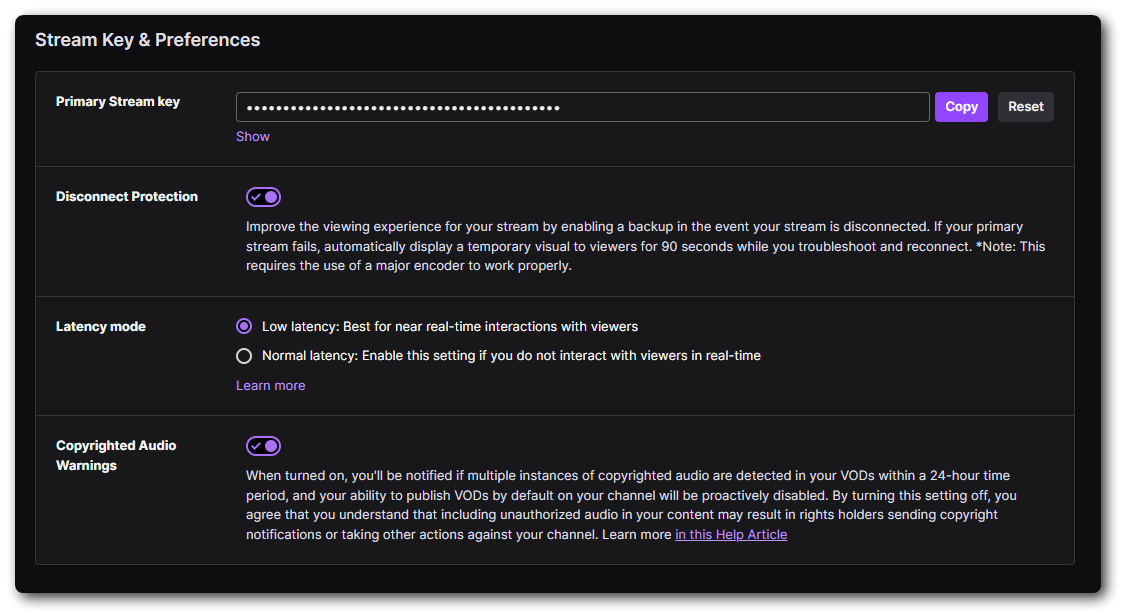
If you go to your Twitch Stream Dashboard: dashboard.twitch.tv
You will find your Stream Key under Settings > Stream on the Sidebar. From here you can copy your Key and paste that in to the Casterlabs Multistreamer as a Destination.
Head to your YouTube Creator Studio and navigate to your Live Dashboard.
From here under "Select Stream Key" from the Dropdown menu select the option to Create New Stream Key.
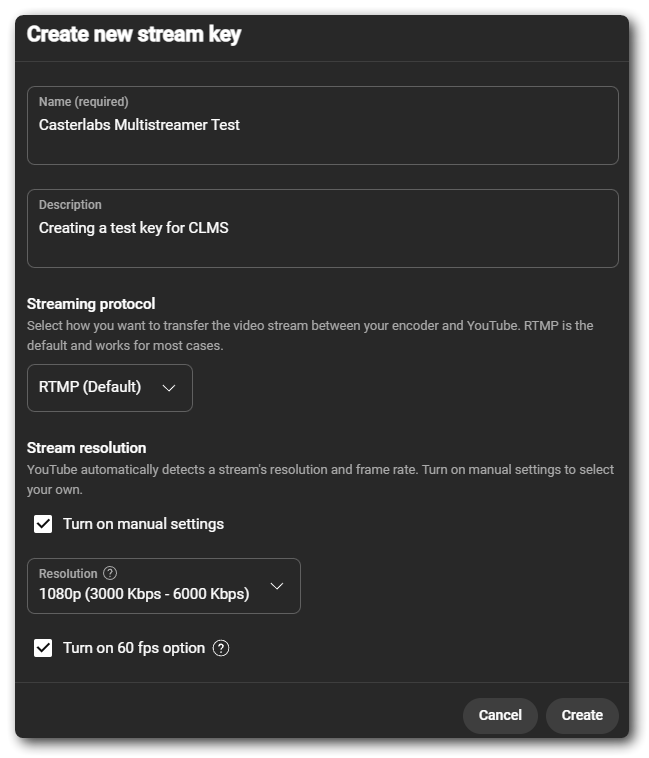
This will generate a new persistent stream key for you.
Give your stream key a name, and set up the bitrate settings for the key.
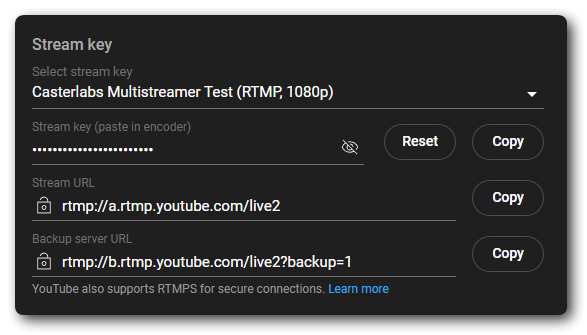
Once you have created a new Stream Key you can click the Copy button next to it and paste that in to your Casterlabs Multistreamer Dashboard.
We hope to have the option to use Scheduled Streams in the future, but for now you will need to use the persistent stream key. Keep an eye on our Discord for updates on this feature.
You can find your Stream Key for Kick by going to your Dashboard dashboard.kick.com/stream
Once there you will find your Stream Key under Channel > Stream URL & Key from the sidebar.
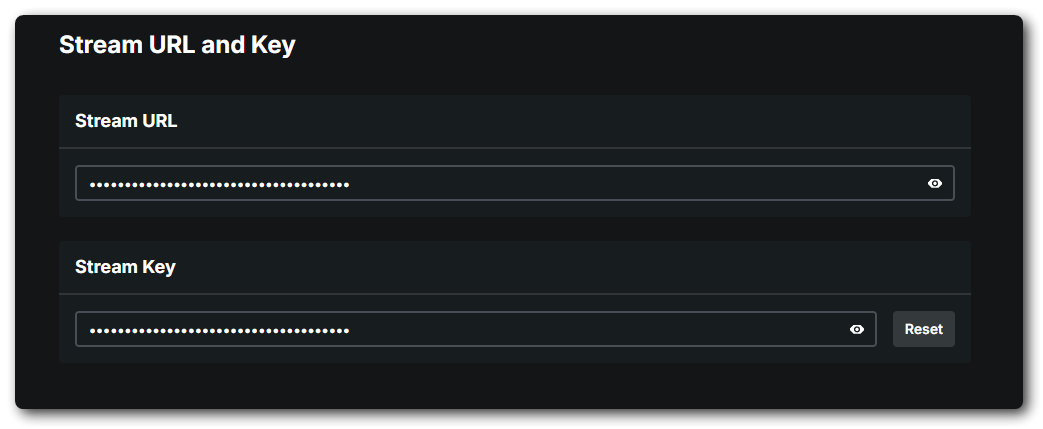
Once you have copied this and pasted it as a destination in Casterlabs Multistreamer you are all set.
You can add any RTMP service as a destination in Casterlabs Multistreamer. All you need is the RTMP URL and your Stream Key.

To do this, select the RTMP option from the dropdown menu and paste in your RTMP URL and Stream Key.