

Third Party Plugin: Ghost Chat
Guide on using Ghost Chat with Casterlabs Caffeinated.
Ghost Chat is a third-party application created by Enubia that allows streamers to manage and interact with their chat in a more immersive way, often used in VR streaming setups. This guide will help you integrate Ghost Chat with Casterlabs-Caffeinated.
Setting Up Ghost Chat #
Ghost Chat can be downloaded from its GitHub repository . Follow the installation instructions provided there to set up the application on your system. Once installed, open Ghost Chat and familiarize yourself with its interface and settings.
Step 1 #
Download and install Casterlabs-Caffeinated.
Step 2 #
Connect your preferred streaming platform accounts. (see Accounts for more information.)
Step 3 #
Create custom Chat Widget.
Follow the guide from the Interactions documentation to create a custom chat widget.
A new menu will popup with all the configuration options for your new chat widget.
Step 4 #
Customize the widget to your liking!
Navigate to Platform.
Then select "Use from" dropdown box.
Check the platforms you want to appear in the overlay.
Step 5 #
Finally, copy the URL from selecting the top right icon.
Alternatively, copy the URL by clicking the three dots next to your custom chat widget. Then "Copy URL".
Step 1 #
Download and install Ghost Chat
It is recommended to navigate to the settings in the top left corner and under "General", setting the "Change the Vanish Keybind" to something you will remember and use.
Step 2 #
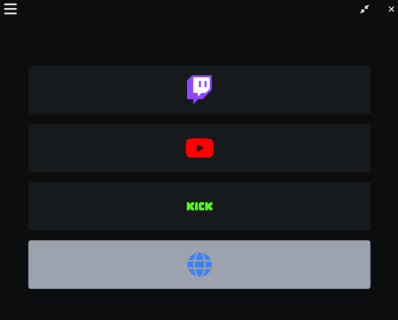
Locate the Globe icon and select it. A popup menu will appear.
Paste the URL from Caffeinated into the input box.
Select "Go!"
Step 3 #
Open a game and test!
Remember to use the Vanish key you configured in Step 1 to show/hide the chat overlay while in-game.
Support #
As Ghost Chat is a third-party application, support for any issues or questions regarding its functionality cannot be provided by Casterlabs. For assistance, please refer to their GitHub repository or community forums.
Shout-out #
A big thank you to Enubia for creating Ghost Chat and contributing to the streaming community!
A massive thank you to Community Member Shad3ious for bringing Ghost Chat to our attention, and helping to test and co-author this guide!